

For teachers · Free beta
Quick practice your whole class can sign in to.
Free class spaces for short, skill-based study games. Students join with a code you show the class, and their first name and last initial or a personal code. No student emails, no passwords to forget.
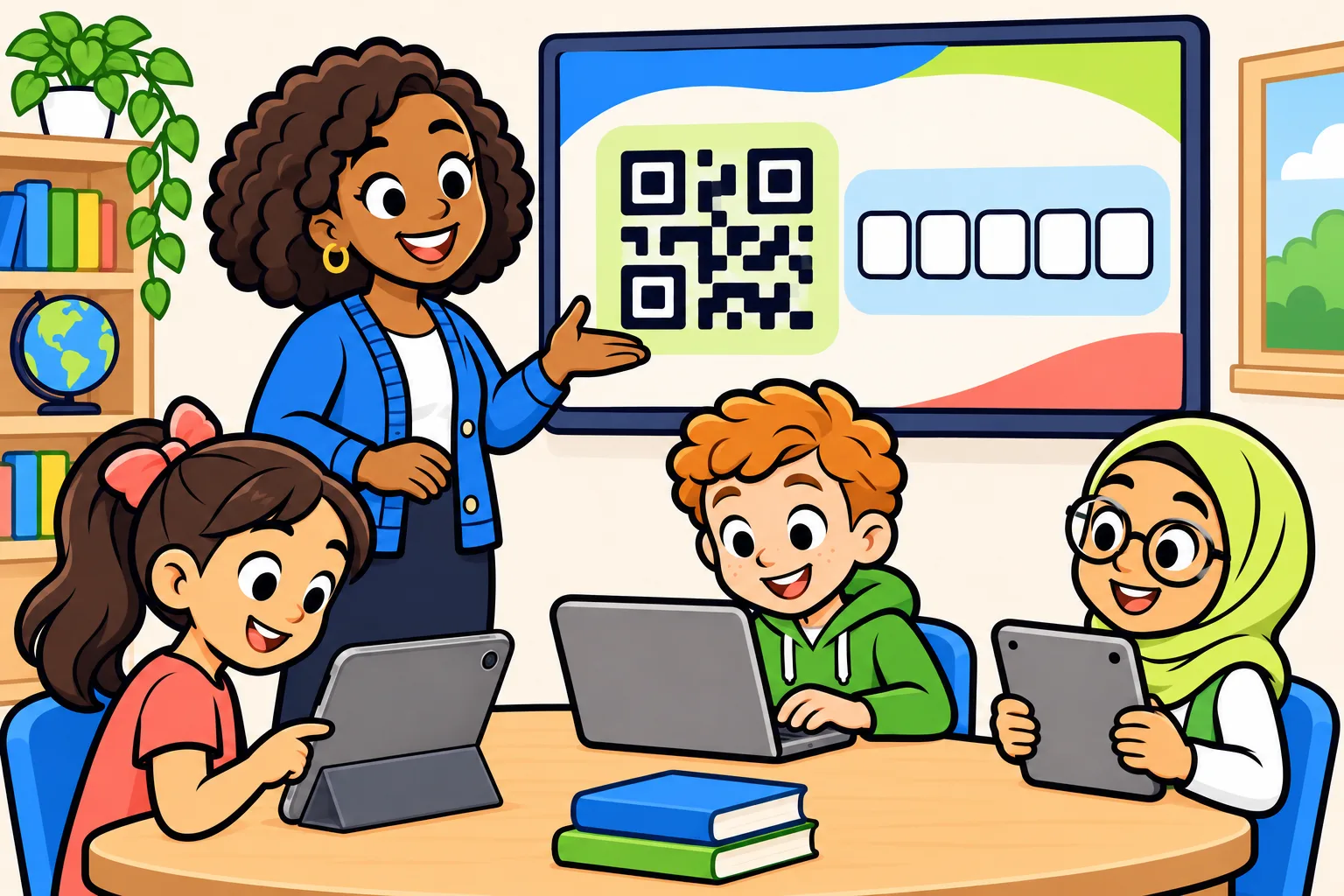
How it works in your classroom
Create your teacher account
Sign up and accept the classroom terms. We check each teacher account by hand, to keep the classroom tools for teachers, and email you when it’s ready, usually within a school day or two.
Add a class and open a session
Choose your games and open a practice session. Each session gets its own join code and QR code.
Students sign in and play
On any device, students type the code or scan the QR code, enter their first name and last initial or their personal code, and start.
What’s in your teacher area
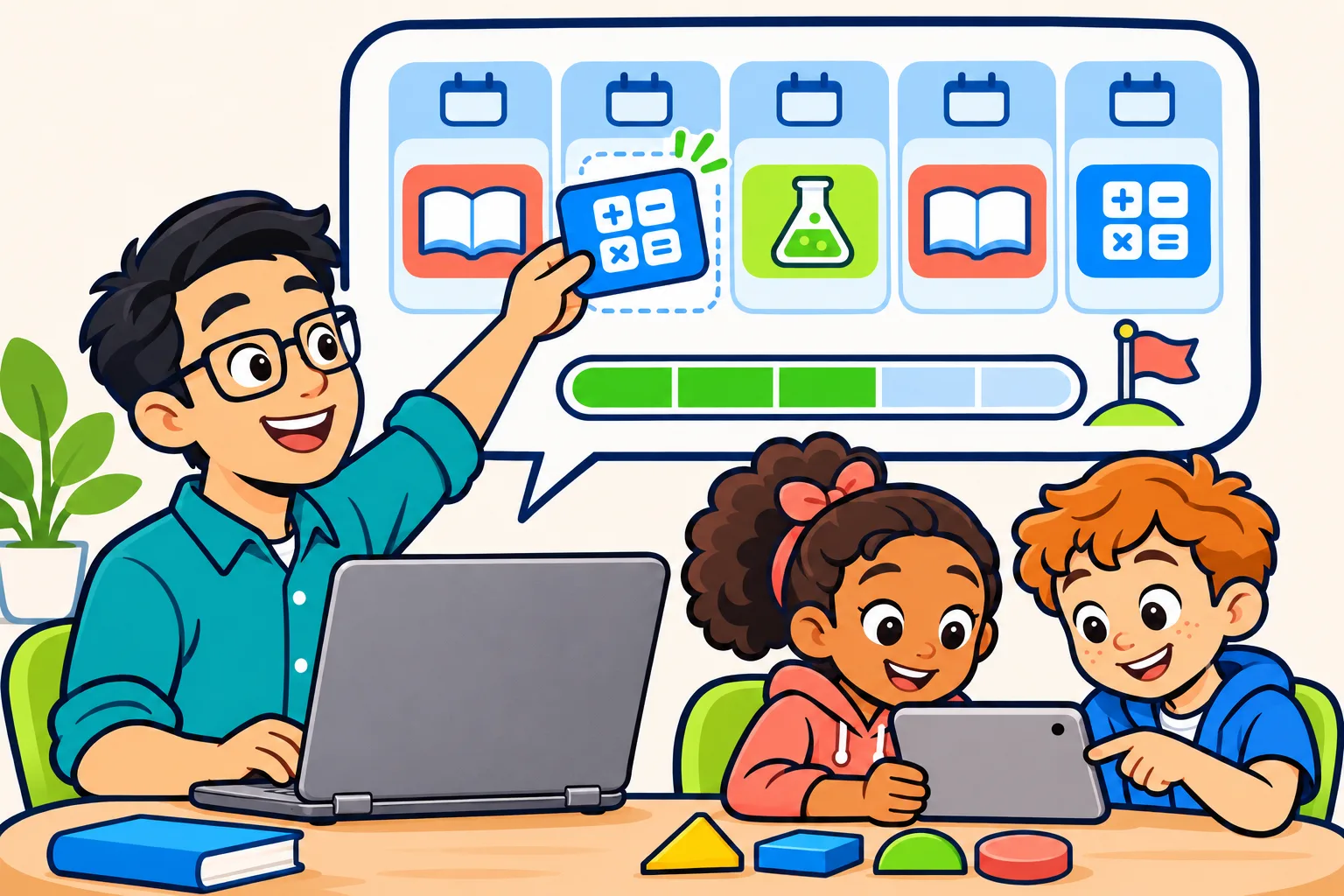
Agendas with a goal
Plan a day or a week, pick the activities, and set a goal. Students see the agenda at the top of their study space, with their progress toward it. Work individually or in teams.
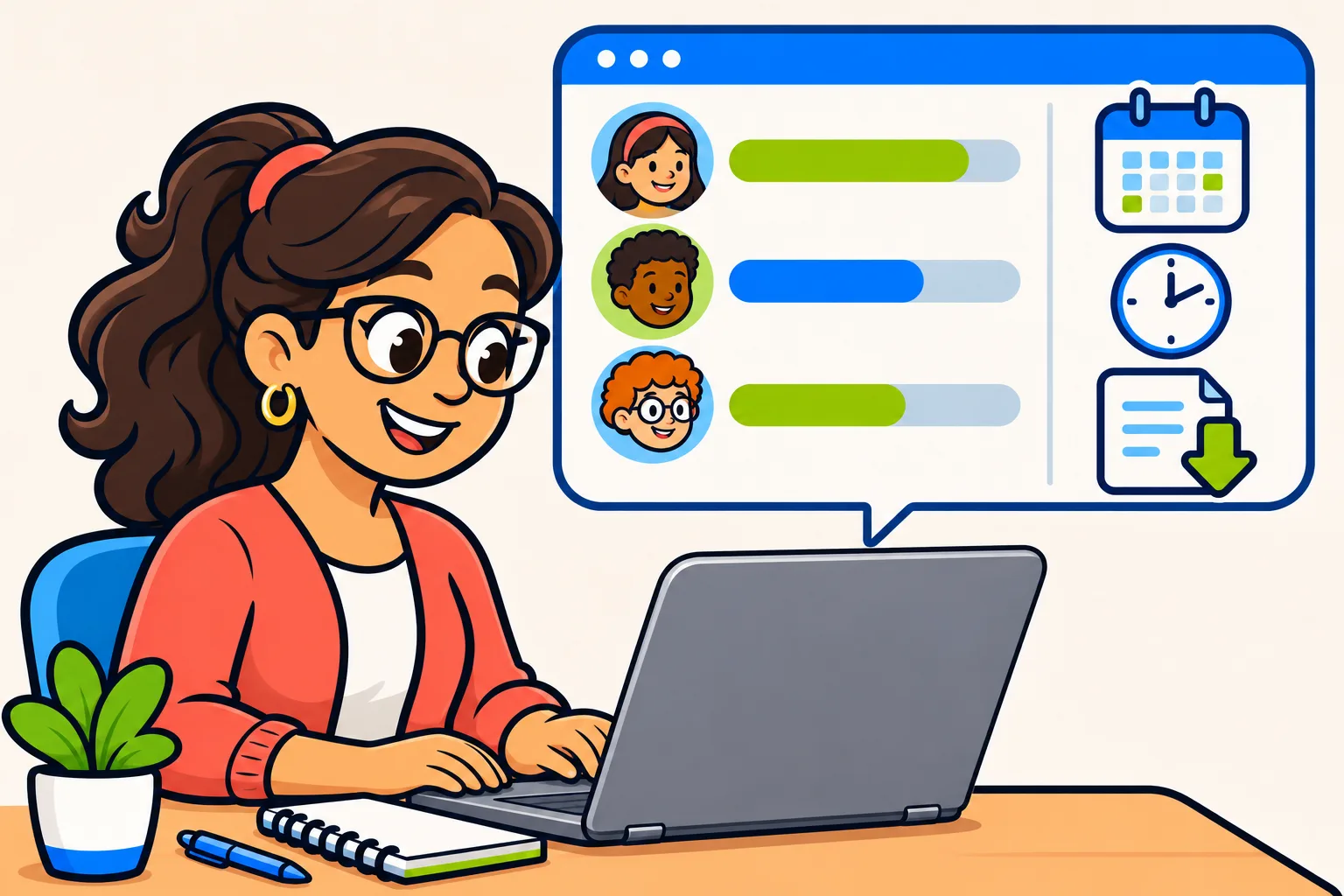
Reports you can use
See who practiced, rounds finished, questions practiced, and minutes by day, week, or month. Download a CSV when you need it.
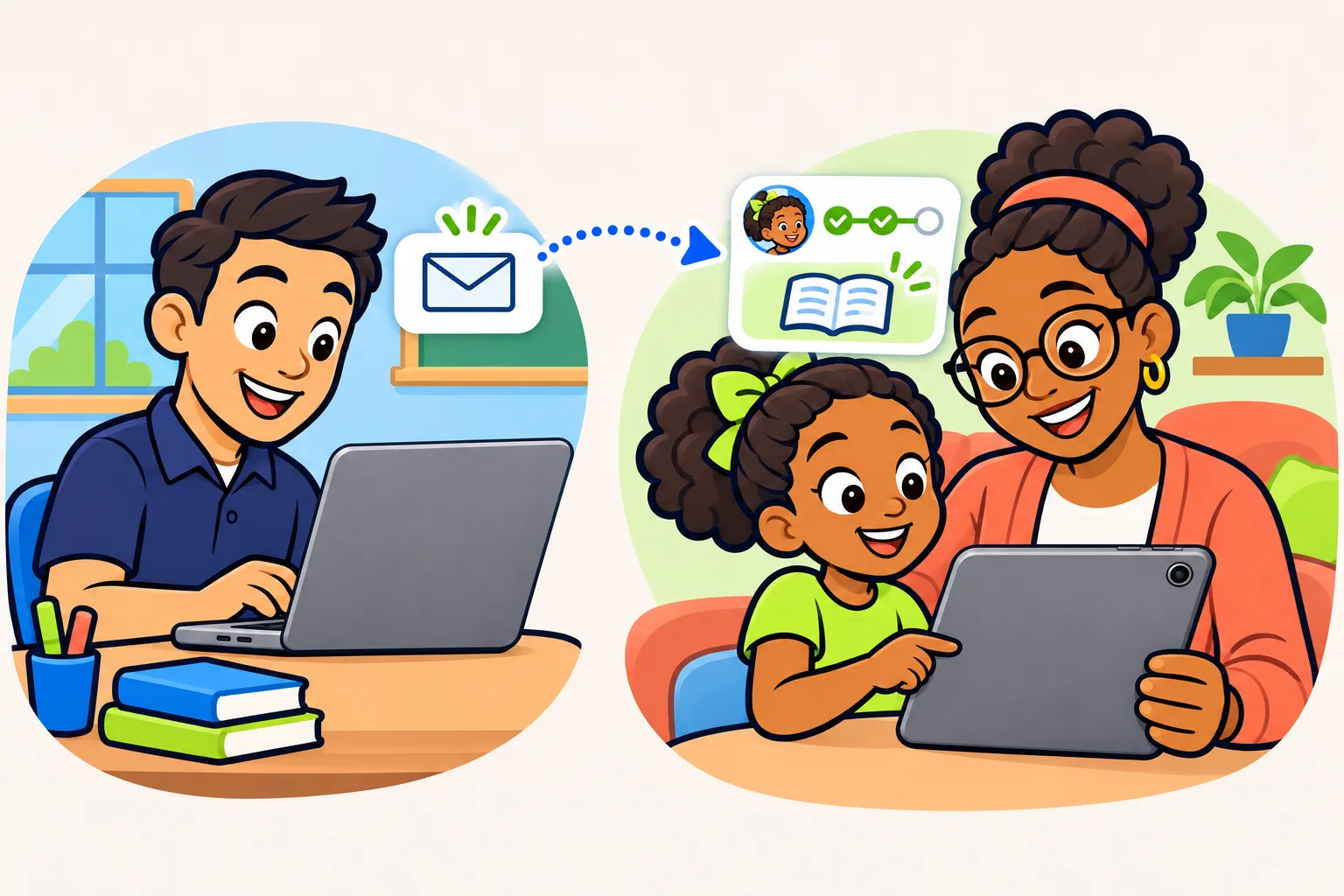
Share with families
Invite a family by email, and once you approve, they see their own child’s class report. Class and home stay separate: kids play at home from their own family sign-in, and you can send home practice there.
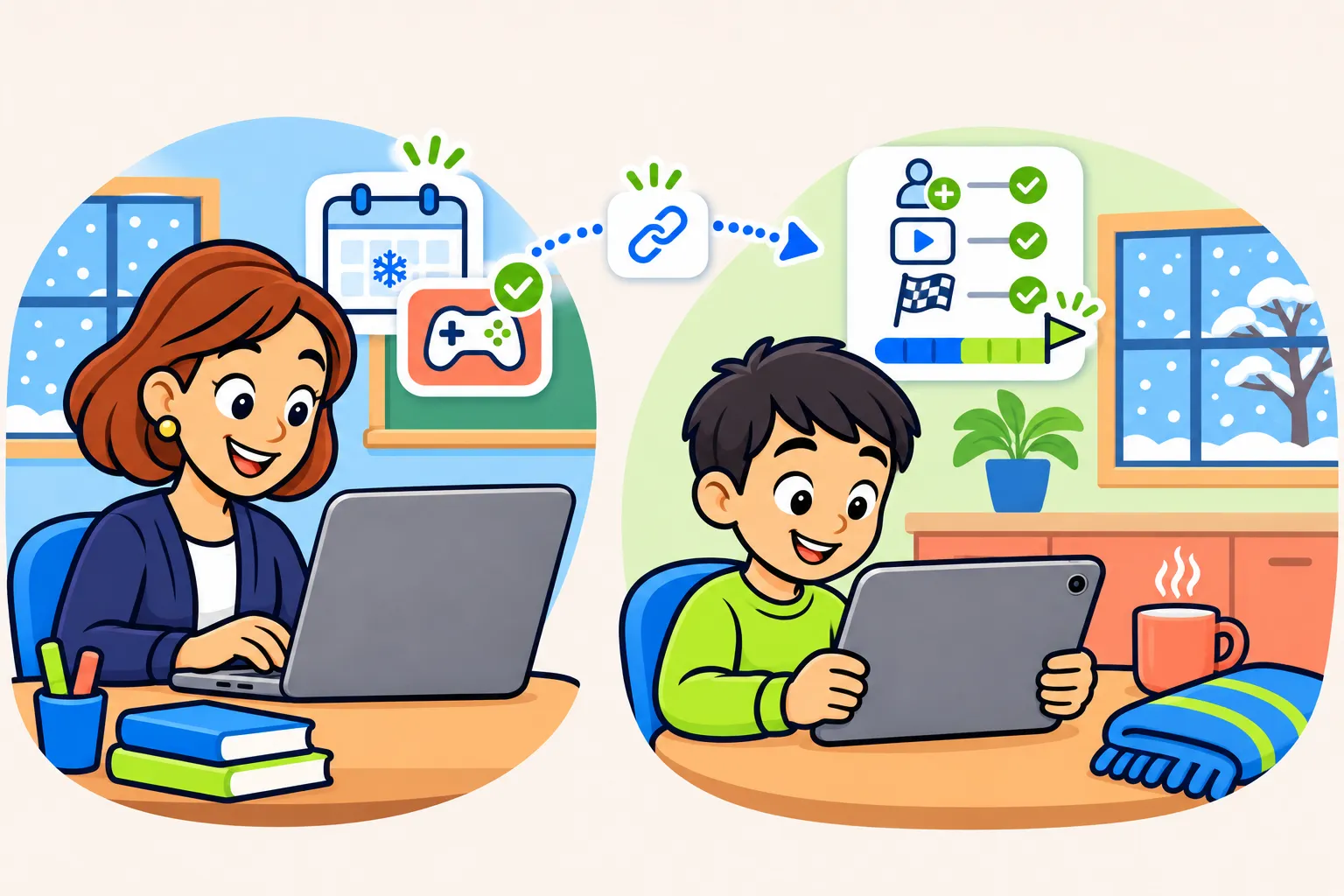
Snow days and school breaks
Plan a remote day
A snow day, a remote learning day or extra credit over winter break: keep your class practicing from home, and see who did what, just as you would in the classroom.
- Choose the games and the day. Pick a playlist, mark the games that are required, and set a goal if you want one. Open the session for one school day, or the whole break.
- Send the link home. Share the session link or code by email, or wherever your class already posts. Students join from any device with their first name and last initial, or their personal code.
- See who finished. The recap shows who joined, what they started and finished, progress toward your goal and the skills to revisit. Download it as a CSV for your gradebook.
- Over a long break, leave one session open for the whole week, so students can play whenever they have a few minutes.
- Families who connect to your class can also get home practice in their child’s own study space. A parent can choose to share that progress with you.
Good to know before you start
- It’s free to use. No subscription, and nothing to buy for your class.
- We’re in beta. The library is small for now. See what’s available.
- Your school says yes. You confirm that your school or district allows you to use Studying with Dad with your students, and you take responsibility for using it with them, including your school’s rules for student data. Read the classroom terms.
- Room to grow. Up to 12 active classes.
- Already a parent here? Ask for a teacher account on the same login, from your account menu. Your family stays just as it is, and you switch between the two any time.
Ready when your class is.
Ask for your teacher account now, and we’ll email you as soon as it’s approved.